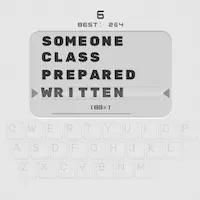
This chapter describes the typing lessons.
Typing Lessons
The screen opens up when you click on the third button in the upper-left part.
Purpose:
To the left, there is the list of lessons grouped by sections; to the right, there is the lesson editor.
A selected lesson from the list of lessons automatically appears in the editor and becomes available for editing. Current lesson is marked with a radio-button. To switch current lesson, set the radio button by the desired lesson.
There are two tabs above the list of lessons; Course (lesson
courses) and User (user's lessons).
When the User tab is active, you can create (Create New Lesson
button), delete (Delete Current Lesson
button) or edit any lessons. When the Course
tab is active, you can only edit the listed lessons.
There are two tabs above the lesson text: Text (course
lessons) and Properties.
When the Text tab is active,
you can edit the current lesson. The Save button saves
the changes made to the lesson. When the Properties
tab is active, you can see the table of characters for the current
lesson.
The table includes three columns: Letter - character; #
- number of times the character appears in the text; % -
this character ratio to the rest of characters in the lesson.
Additional lessons are available at Additional Lessons.
Here you can use the following shortcuts:
See also:
Free touch typing tutor for Windows
Download Typing TutorI downloaded this for daughter as his school is encouraging touch typing. However I have found myself using it as well. The lessons are simple, and it has improved my typing skills. Thank you.
Charles D.
Jul 17, 2010
Interesting way to improve typing skills!
Dan
Jul 12, 2010
Copyright © 2007-2010 Typing Tutor Labs. All Rights reserved.Privacy Policy