Touch Typing Tutor Manual
This manual describes the basic information and use of the Typing Tutor.
Previous | Contents | Next
User Experience
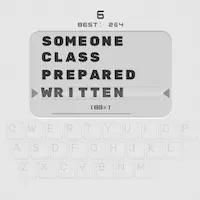
Once you've configured settings in Wizard, RapidTyping's main window will appear as shown below.

The window is composed of the following controls:
- Taskbar lets you set or change on the fly some basic options to start a lesson (keyboard layout, level, lesson) and options.
- Three vertical buttons in the top-left corner ( Lesson,
Statistics and Lesson Editor) are used for switching between current lesson, User Statistics and Lesson Editor.
- Text Panel is the area where the text to be typed is displayed. You can easily edit it in Lesson Editor, if necessary.
- Lesson Control Panel includes several controls to pause/resume the current lesson, enable/disable sounds, and adjust the sound volume.
- And Keyboard is the virtual keyboard that will help you to learn touch typing with all ten fingers. You can customize its appearance in the '
Lesson' section.
When you're quite familiar with the Typing Tutor interface, learn how to start your first lesson. Don't forget to also check our shortcuts - they'll make your interaction with Typing Tutor even more quick.
See also:
Previous | Contents | Next