Touch Typing Tutor Manual
This manual describes the basic information and use of the Typing Tutor.
Working with Lesson Editor
To open Lesson Editor, click the  button in the top-left corner of the RapidTyping window. The screen will appear as shown in the picture below.

Lesson Editor window is composed of the following controls:
- Taskbar lets you select the keyboard layout and level of the lesson you'd like to edit.
- Toolbar includes buttons for adding a new lesson, inserting text from file and saving changes.
- Navigation Tree shows the existing courses and lesson hierarchy.
- Text Panel is the area where you can edit the text of the lesson currently selected in the Navigation Tree.
- Lesson Metrics displays the number and percentage of words, characters, spaces and specific characters in the lesson.
- And Keyboard is the virtual keyboard that highlights the characters used in the currently selected lesson. You can customize its appearance in the ' Lesson' section.
Lesson Editor makes all the lessons fully customizable. You can add, insert, change, and delete lessons, group them in courses, and review the corresponding metrics.
New Lesson
To add a new lesson, perform the following:
- Choose the keyboard layout and level from the drop-down list on the Taskbar.
- In the Navigation Tree, choose the course where you want to add the lesson.
- Click the
 button on the Toolbar (or press Ctrl+N on your keyboard). The following dialog box will appear: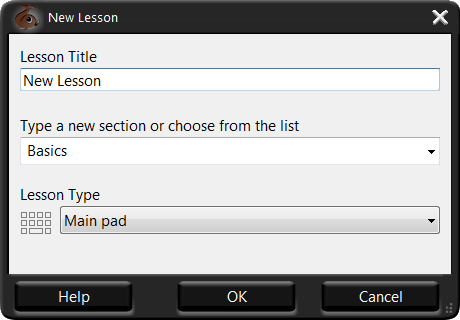
- Fill out the fields in this dialog: specify the name of the lesson in Lesson Title, verify the course where the lesson should be added, select Lesson Type from the drop-down list and click OK. A new lesson will be added to the selected course and will show up in the Navigation Tree.
Then, you can either type or copy and paste the lesson text manually, or insert it from an external file. If you prefer the latter, there are two buttons available to you:
- If you want to simply insert a text from a single file into a single lesson, click the
 button (or press Ctrl+I on your keyboard) and choose the corresponding text file ( txt and rtf files are supported).
 - If you want to insert a text from multiple files into a multi-section lesson, click the
 button (or press Insert
on your keyboard) and in the dialog box that appears specify a section, length of each subsection (in characters) and lesson type. All imported text will be split into several sections of nearly the same length. This function does NOT support RTF files.
button (or press Insert
on your keyboard) and in the dialog box that appears specify a section, length of each subsection (in characters) and lesson type. All imported text will be split into several sections of nearly the same length. This function does NOT support RTF files.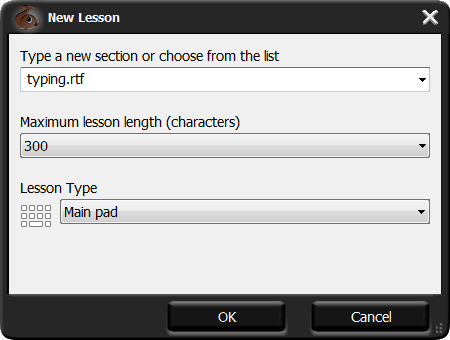
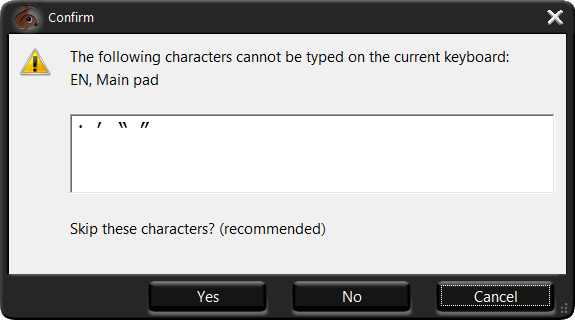
 Notes: If a text that is being imported contains unsupported characters (such as special Word symbols or foreign-language symbols), RapidTyping will display a dialog box suggesting you to skip them. It's recommended that you click Yes.
To delete a lesson, select it in the Navigation Tree
and click the  button on the Toolbar (or simply press the Delete key on your keyboard).
You can also view and/or change properties of the current lesson by clicking the  button on the Taskbar.
New Course
To add a new course, perform the following:
Click the
 button on the Taskbar. The following dialog box will appear: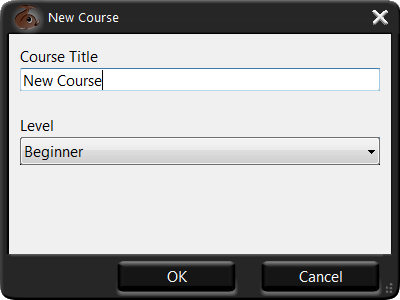
- Specify the name of your course, then choose the level from the drop-down list and click OK. The new course will be opened, and you'll be able to add lessons in it as described above.
To delete a newly created course, click the  button on the Taskbar.
You can also view and/or change properties of the current course by clicking the  button on the Taskbar.
Notes:
- Characters used in the current lesson are highlighted in black on the virtual keyboard.
- You can scale the text of the lesson by choosing the scale value in the drop-down list just above the numeric pad of the virtual keyboard.
- Borders of Navigation Tree, Text Area and Lesson Metrics are movable, so you can adjust the width of these sections, if required.
See also:
Top Typing Games



RapidTyping Reviews
Rapid typing tutor is very best and helpful to me. It increases my speed in typing.
The online test is also helpful. It is very useful software.
Shanaya
very good software from beginners to advanced ones thanx for making it a freeware
vandana